
If you have a PDF which you'd like to edit, including to change, add, or remove text or images, you can use the Affinity application on your teacher laptop.
TABLE OF CONTENTS
Note: PDFs are not designed to be edited. It's always better to edit the original document and create a new PDF, if possible.
Install the Affinity App
You can install the Affinity app on your teacher laptop through the KSD Self Service app.
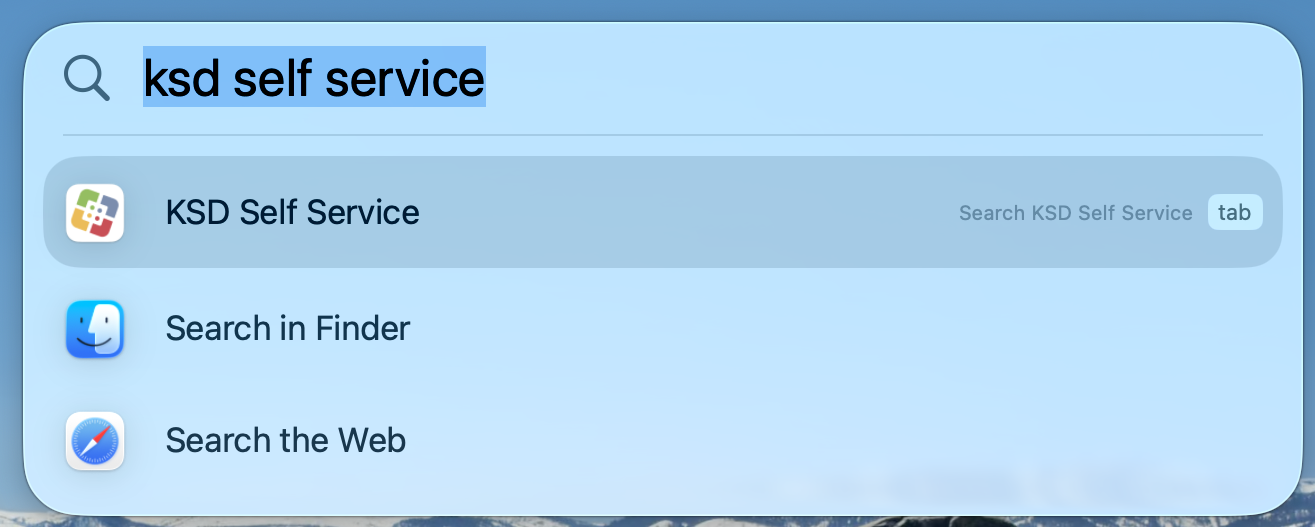
First, click the magnifying glass icon in the upper-right corner of your screen. Next, type KSD Self Service into the text box which appears, then press the Return key.
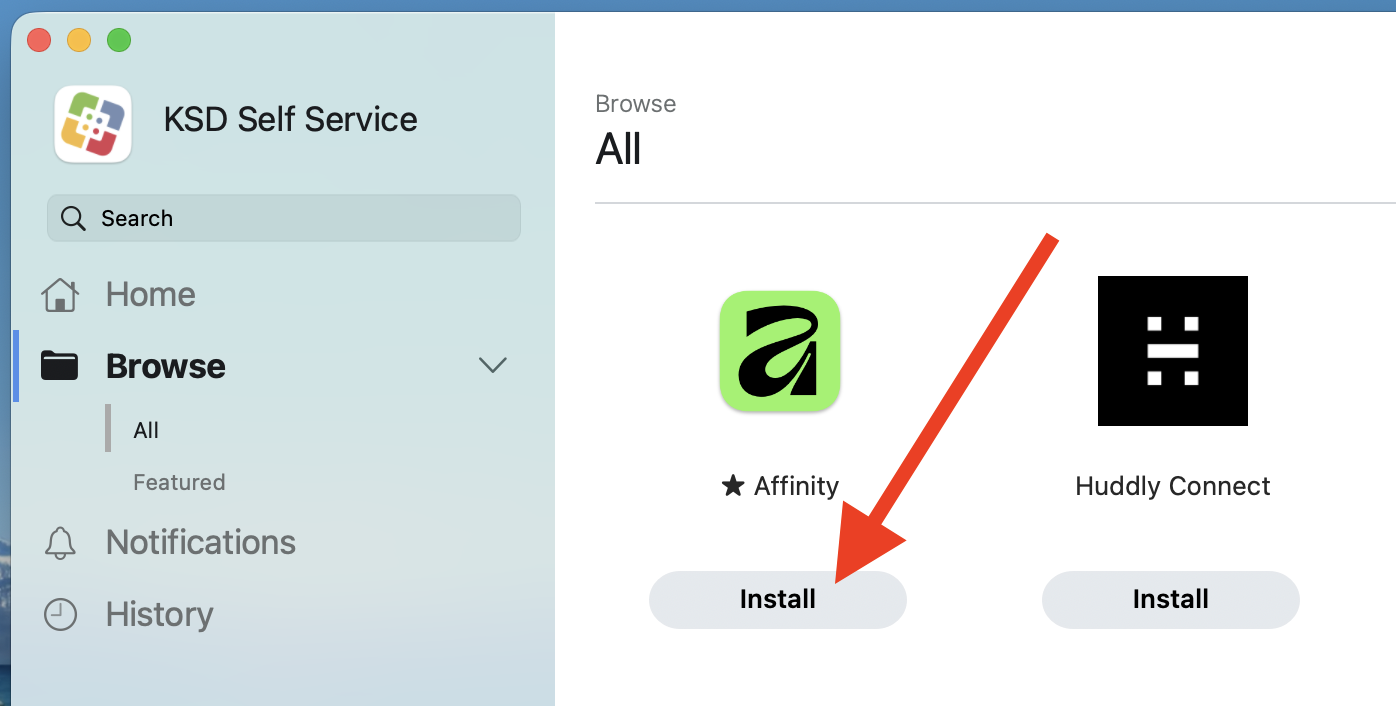
The KSD Self Service app will open. Find the Affinity app in the list, then click the Install button.
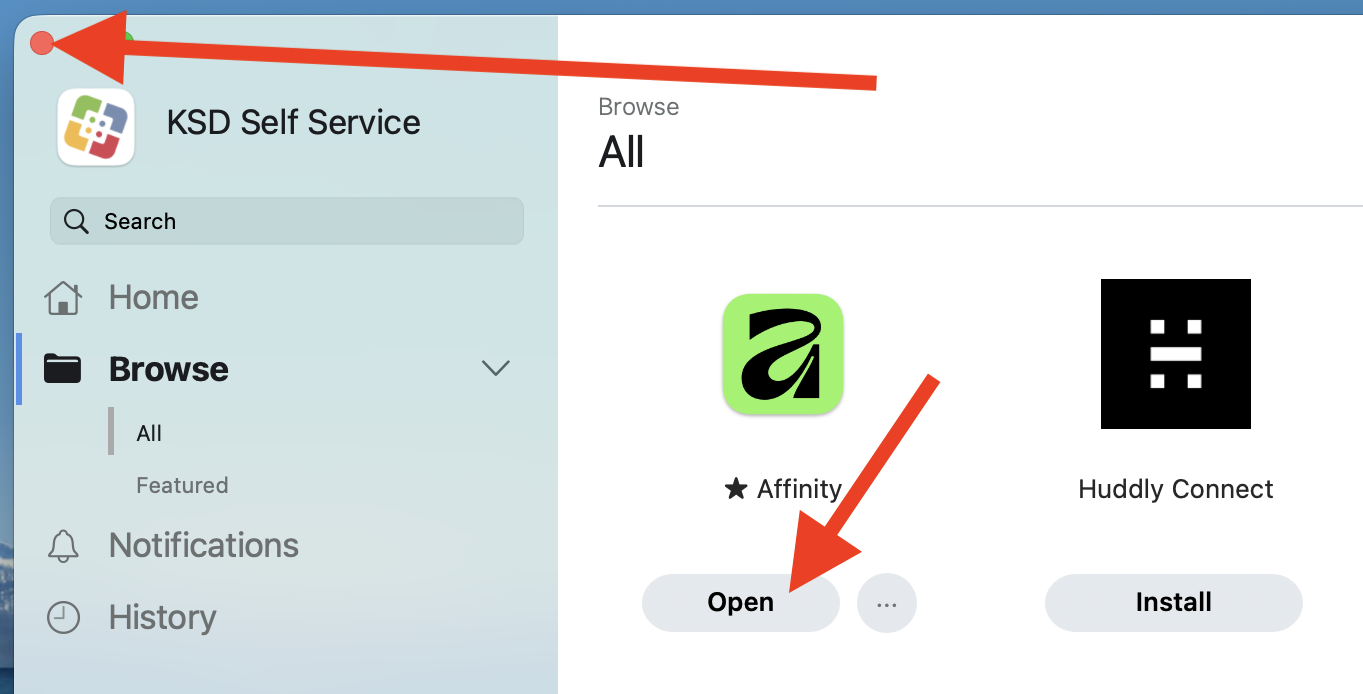
The button will spin for several minutes while the app is downloaded and installed. Once it is ready, the button will change to say Open. Click the Open button, and then click the red button in the upper-left to close this window.
The Affinity app should open and show a welcome screen. Click the Log in or sign up button to begin.

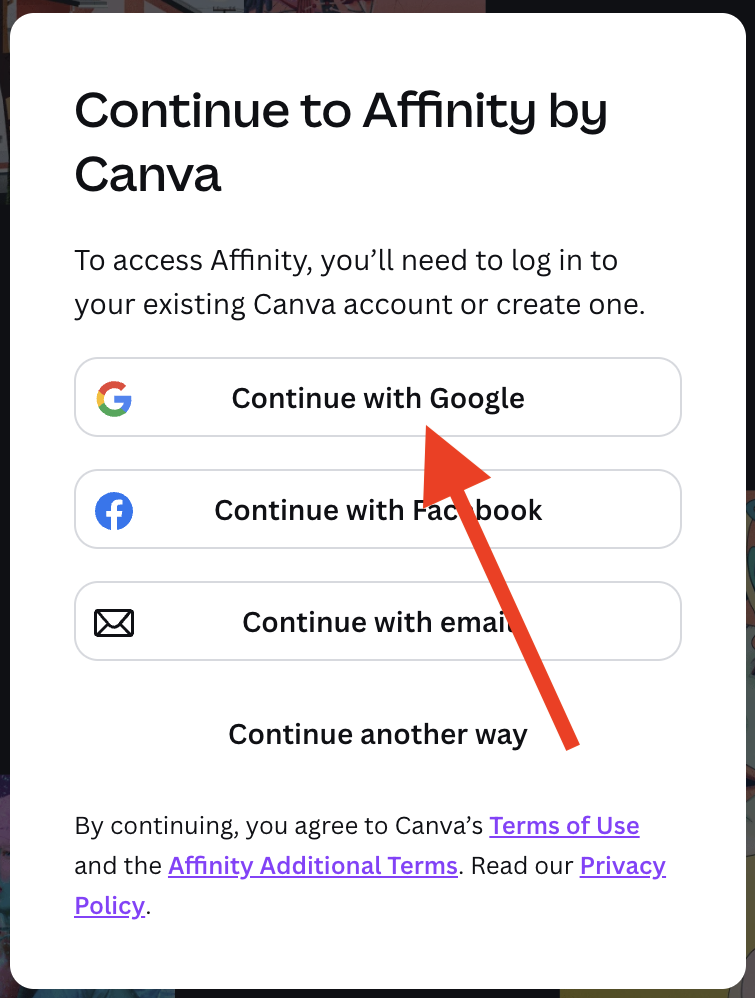
Your browser will open to the Affinity by Canva login screen. Click the Continue with Google button.
Next, click on your Kentfield account. Finally, you should see a pop-up asking if you want to open Affinity. Click the Open Affinity button.
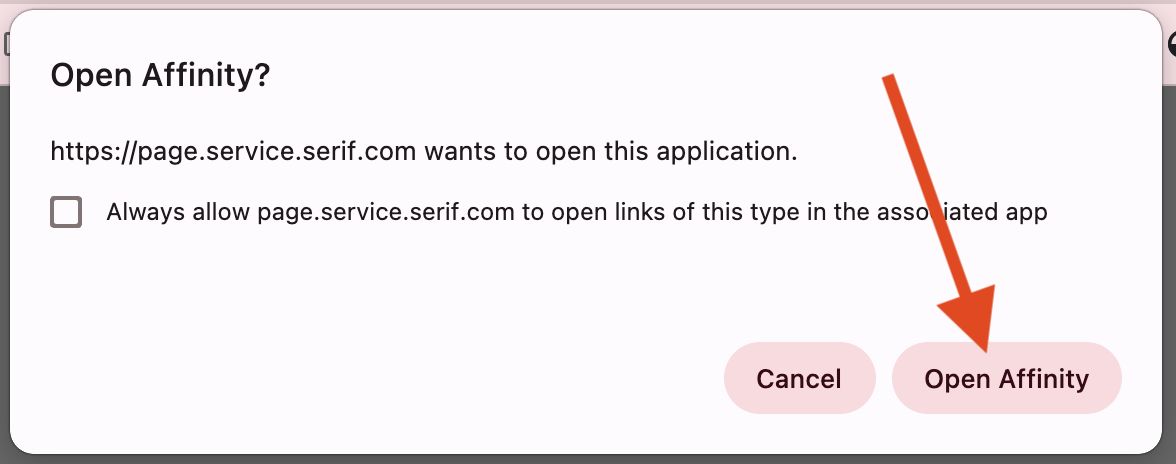
You will now be taken back to the Affinity app, and presented with several welcome and tutorial screens. The app is now ready to use.
Using Affinity to Edit PDFs
Here is a video tutorial, demonstrating how to use Affinity to edit two types of PDFs.
Here is an additional video, demonstrating how to add new blocks of text to a PDF, as well as adding images into a PDF.